> ## Documentation Index
> Fetch the complete documentation index at: https://docs.hivenet.com/llms.txt
> Use this file to discover all available pages before exploring further.
# How can I connect to a Compute instance from Windows?
> From first SSH login to a working prompt
## What you’ll need
* A Compute instance created via the Hivenet dashboard
* Your SSH private key
* Windows Terminal or another SSH-capable terminal (like PowerShell)
* A configured `config` file (optional but helpful)
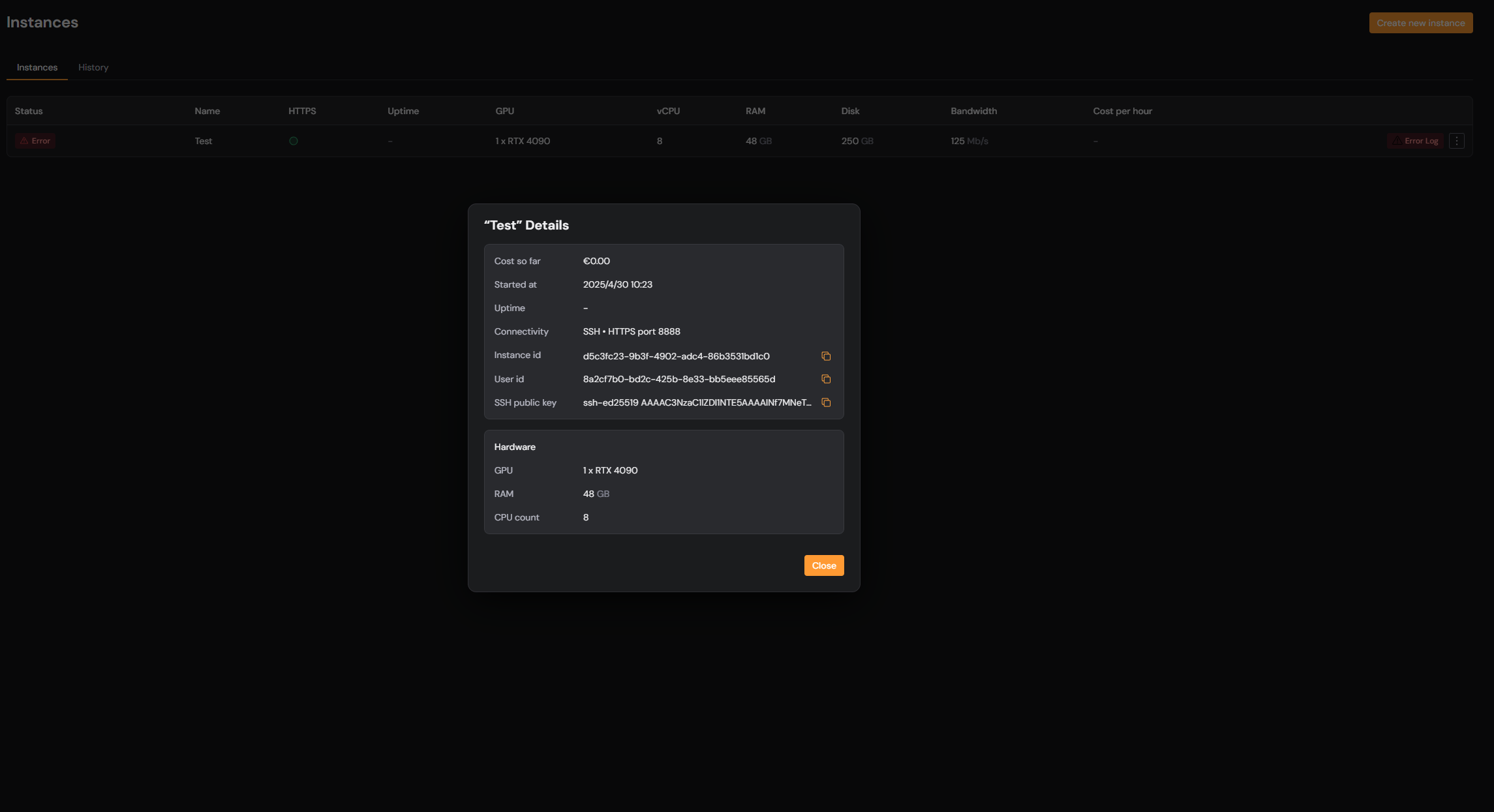
## Step 1 – Get your instance ID
When you create a Compute instance, you'll receive a unique ID that looks like:
```
ba184ade-84ed-4047-90bb-ca3b76e84246
```
Use this to build your SSH HostName:
```
ba184ade-84ed-4047-90bb-ca3b76e84246.ssh.hivecompute.ai
```
 ## Step 2 – Connect
**Fastest option (recommended)**
1. In the dashboard go to **Instance → Connectivity options → SSH**.
2. Click **Copy to terminal to connect**.
3. Paste the command into your terminal and hit Enter.
* The command already includes your instance ID and user.
* It only works if you’ve added the “Add this to your SSH/config file” snippet shown right below the command.
## Step 2 – Connect
**Fastest option (recommended)**
1. In the dashboard go to **Instance → Connectivity options → SSH**.
2. Click **Copy to terminal to connect**.
3. Paste the command into your terminal and hit Enter.
* The command already includes your instance ID and user.
* It only works if you’ve added the “Add this to your SSH/config file” snippet shown right below the command.
 **Build the command yourself**
```
ssh ubuntu@.ssh.hivecompute.ai
```
Replace `` with the ID you copied in Step 1.
\*\*If you’ve created a Host entry in \*\*`~/.ssh/config`
```
ssh hivenet
```
## Step 3 – Use a ProxyCommand if needed
Some connections require a jump host (a "bastion") for access. If you're getting timeouts, try this:
```
ssh -i ~/.ssh/id_ed25519 -o "ProxyCommand ssh bastion@ssh.hivecompute.ai %h" ubuntu@.ssh.hivecompute.ai
```
You may need to replace `id_ed25519` if your key has a different name.
This creates a secure tunnel from your machine to the instance through Hivenet’s bastion.
## Step 4 – Confirm your connection
If everything works, you'll land in a Linux shell on your instance. You can now:
* Install packages
* Clone repos
* Run workloads
* Start your apps (like Fooocus, Jupyter, etc.)
## Troubleshooting
* **Terminal closes immediately** — Run your SSH command from an open terminal window instead of double-clicking a file.
* **Connection timed out** — Add `-v` to get detailed output and check for network issues.
* **Permission denied** — Check that your SSH key matches what you uploaded in the Compute dashboard.
* **Bad Gateway** — You may be trying to access a web app before it’s started. Use `curl localhost:` to confirm it's running.
**Build the command yourself**
```
ssh ubuntu@.ssh.hivecompute.ai
```
Replace `` with the ID you copied in Step 1.
\*\*If you’ve created a Host entry in \*\*`~/.ssh/config`
```
ssh hivenet
```
## Step 3 – Use a ProxyCommand if needed
Some connections require a jump host (a "bastion") for access. If you're getting timeouts, try this:
```
ssh -i ~/.ssh/id_ed25519 -o "ProxyCommand ssh bastion@ssh.hivecompute.ai %h" ubuntu@.ssh.hivecompute.ai
```
You may need to replace `id_ed25519` if your key has a different name.
This creates a secure tunnel from your machine to the instance through Hivenet’s bastion.
## Step 4 – Confirm your connection
If everything works, you'll land in a Linux shell on your instance. You can now:
* Install packages
* Clone repos
* Run workloads
* Start your apps (like Fooocus, Jupyter, etc.)
## Troubleshooting
* **Terminal closes immediately** — Run your SSH command from an open terminal window instead of double-clicking a file.
* **Connection timed out** — Add `-v` to get detailed output and check for network issues.
* **Permission denied** — Check that your SSH key matches what you uploaded in the Compute dashboard.
* **Bad Gateway** — You may be trying to access a web app before it’s started. Use `curl localhost:` to confirm it's running.